
How To Set Up Gmail for POP3 and SMTP
6 Minutes, 1 Seconds to Read.

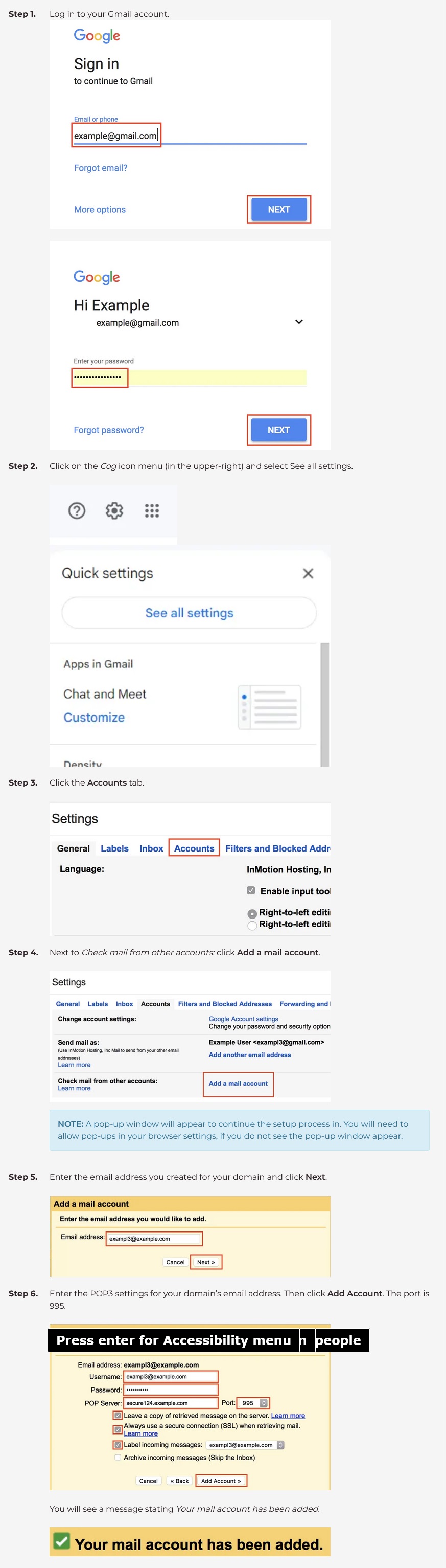
You can use the Gmail interface to send and receive emails using an email account you create with your domain. By setting up your domain’s email address as a POP3 and SMTP account in your Gmail account, you can use Gmail as an email client (much like you would use Outlook, Mac Mail, or Thunderbird). This article explains how to configure your Gmail Pop server settings to do so.
NOTE: When you are a StanbroHosting customer, your emails are securely stored on our servers, eliminating the need to set up another email client. However, if you want to host your email on Gmail servers (instead of Stanbro’s), follow our guide on How to Use Google Apps to Host Your Email.
(Not a current customer? Our Managed VPS Hosting is perfect for those people who want to be more hands-off without sacrificing performance.)
Pro Tip: If you’re using Google Workspace, Google recommends setting up OAuth instead of relying on basic authentication with a username and password. While this guide explains how to use App Passwords for basic access, OAuth provides stronger, more secure authentication and is worth considering for long-term use.
Before You Begin
- You will need your POP and SMTP settings to complete this tutorial. You can find your email settings in cPanel.
- If you previously created an email forwarder to your Gmail account, you will need to remove it. You can’t receive emails if there’s a forwarder in place.
- We recommend using the secure (SSL) settings. Using SSL email settings is more secure as it encrypts the data while in transit.
- Gmail may block POP3 access due to suspicious activity, location changes, or strict app access rules. Use App Passwords or OAuth to bypass these restrictions, especially if 2FA is enabled.
- With 2-factor Authentication enabled, you’ll need an App Password—regular passwords won’t work for POP3 or SMTP connections.
Set Up Gmail to Send / Receive Email for Your Domain
Configuring Your Gmail POP Download Settings
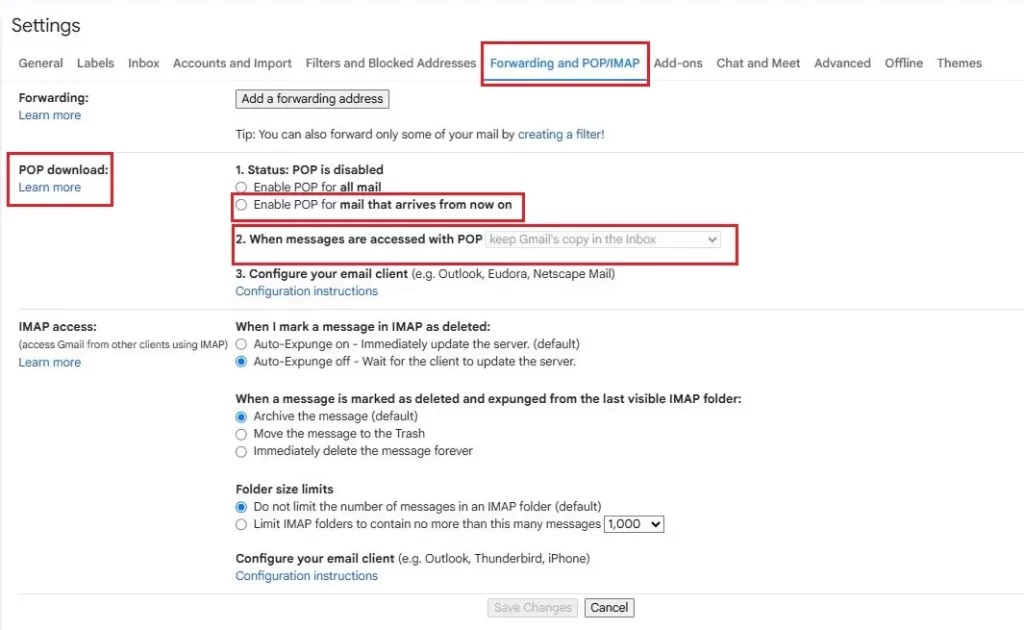
It’s important to prevent Gmail from downloading all existing emails. To do this, follow the steps below:
- In your Gmail settings, go to the “Forwarding and POP/IMAP” tab
- Under “POP download,” select “Enable POP for mail that arrives from now on.”
- Choose whether to keep, archive, or delete Gmail’s copy of messages after being retrieved
Step 1.To continue to set up SMTP in Gmail, select Yes and click Next Step.
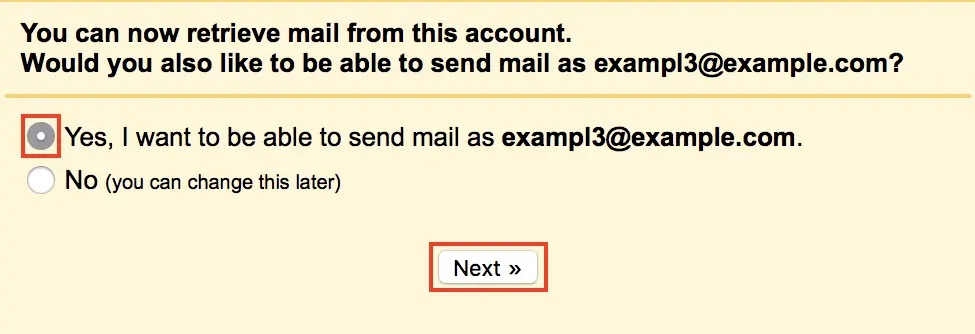
NOTE: If you do not want to send emails for your domain through Gmail, click the No radio button. You don’t need to follow the next steps.
Step 2. Enter your Name, as you would like it to appear when sending emails from this account. Also, ensure that the check box for Treat as an alias is checked.
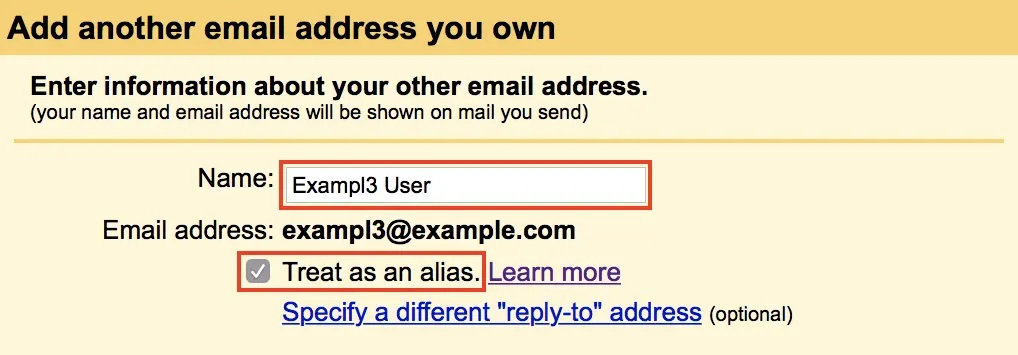
Click the Next Step button to proceed.
Step 3.On the Send mail through your SMTP server page, fill in your SMTP Server (typically “secure###.stanbrohosting.com“), Username (full email address), and Email Password. The port is 465.
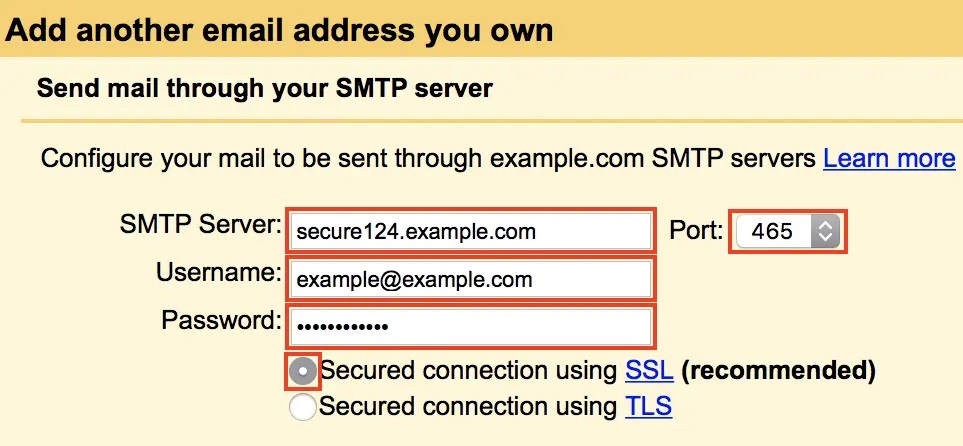
Then, click the Add Account button.

Step 4. Now, Gmail will email a verification code to the email address you just added. You can either click the link in the email or copy/paste the code into the text box and click Verify.
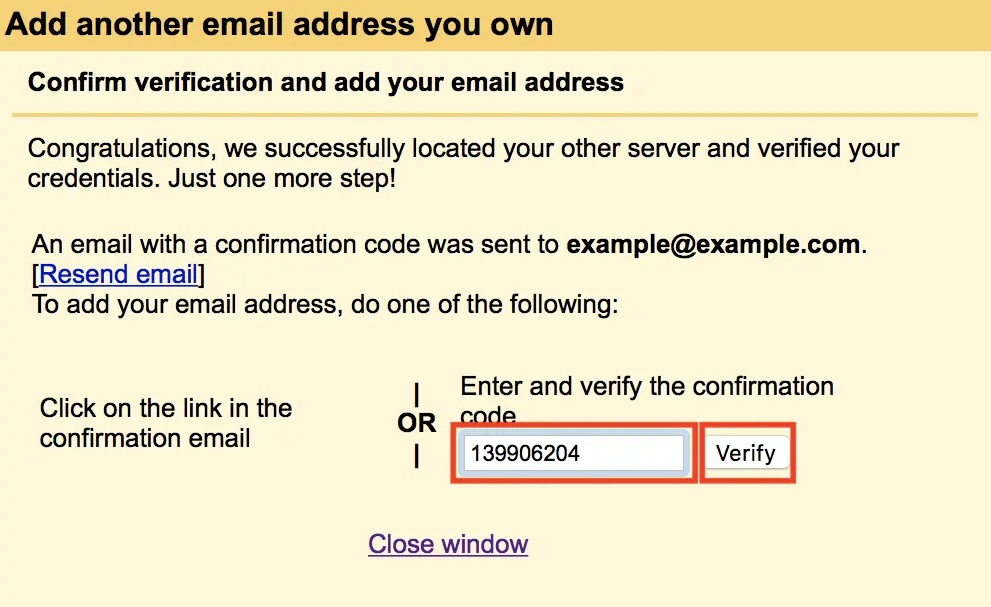
Now you will see your domain’s email address in the Send mail as and the Check mail from other accounts sections.
Common Troubleshooting Issues
There are common troubleshooting issues when setting up you Gmail POP server settings and SMTP. This section outlines a few key issues and how to resolve them.
Connection Timeouts
Connection timeouts typically occur when Gmail tries to retrieve email from your domain’s POP3 server but fails to receive a response within a set time. This can be caused by incorrect POP3 settings, port misconfiguration (e.g., not using port 995 for SSL), firewall restrictions, or poor server connectivity.
If you experience this, double-check your POP server name and ensure SSL is enabled. Also, verify that your hosting server is online and not experiencing outages. Some antivirus or firewall software may block the necessary ports—temporarily disabling them can help isolate the issue.
Permission Denied Errors
Permission denied errors usually appear when Gmail cannot authenticate or access your domain’s mailbox via POP3. This is often the result of incorrect email credentials, disabled POP3 access in Gmail settings, or misconfigured server permissions. Start by confirming that your full email address and password are entered correctly.
If you’re using Google’s App Passwords, make sure you’ve generated and entered the correct app-specific password. For accounts with two-factor authentication, regular passwords won’t work without this. Lastly, check that your server is allowing POP3 connections and that IP restrictions are not blocking Gmail’s access.
Authentication Failures
Authentication failures during POP3 setup are commonly linked to incorrect usernames, passwords, or mismatched security settings. Gmail requires a full email address (e.g., user@yourdomain.com) as the username, and the password must be valid or replaced with an app-specific password if 2FA is enabled.
Ensure SSL is selected and port 995 is used. Also, some servers enforce security policies that block repeated failed login attempts—check for lockouts or brute-force protection. If authentication fails consistently, reset your email password in cPanel and reconfigure Gmail with the updated credentials to restore access.
SSL Certificate Issues
SSL certificate errors can arise when Gmail cannot verify the security certificate of your domain’s POP3 server. This usually happens if the certificate is expired, self-signed, or mismatched with your domain name. Gmail expects a valid, trusted SSL certificate to establish secure connections on port 995.
To fix this, ensure your server’s SSL certificate is current and properly installed. If you’re using a custom domain, verify that the mail server name (e.g., mail.yourdomain.com) matches the certificate’s Common Name (CN). You can also switch to the server’s hostname (e.g., secure###.stanbrohosting.com) to avoid mismatch warnings.
Now, you know how to set up Gmail POP server settings and SMTP. For more information, check out our Email Knowledge Base. For the best private email experience, upgrade to professional business email with your StanbroHosting account today.