
How to Change an Email Password in cPanel and Webmail
Updated
1 Minutes, 15 Seconds to Read
Keeping your email password secure is essential. If you’ve forgotten it or need to update it, you can change it through cPanel or Webmail.
Change Your Email Password in cPanel
Using cPanel is the best method if you have cPanel access or have forgotten your email account password.
Step 1.Log in to cPanel.
Step 2.Under Mail, click Email Accounts.
Step 3.On the right of your email account, click MANAGE.
Step 4.Type a new password.
Step 5.Click UPDATE EMAIL SETTINGS at the bottom.
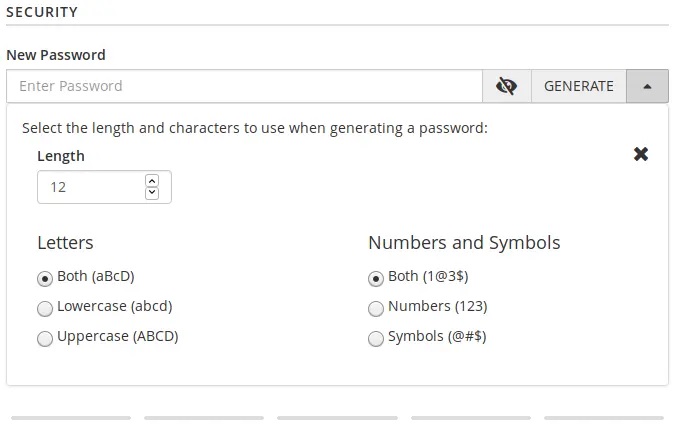
Create a new password in cPanel.
Change Your Email Password in Webmail
Using Webmail to change your password is the easiest method for an email account user without cPanel access who can still log into the email account.
Step 1.Log in to Webmail.
Step 2. This step applies to those who have changed their default Webmail page.
From Roundcube, select Webmail Home on the left.
Step 3.Afterwards, or if you’re on the default Webmail page, click your email account in the upper-right corner, then Password & Security.
step 4.Type a new password and click Save.
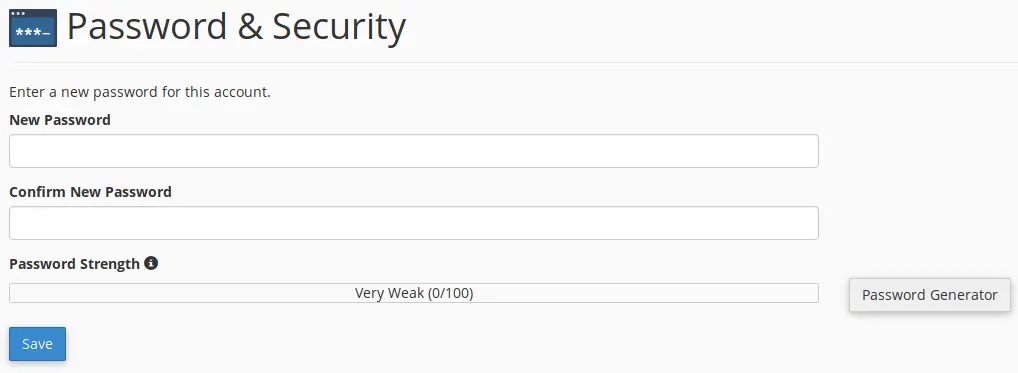
Tips for Security
- Use a password manager for strong, unique passwords.
- Update passwords every 90 days.
- Enhance security with Spam Filters and Email Filters.
If you’re looking to improve your email authentication, consider configuring the following:
- Spam Filters (formerly SpamAssassin) to blacklist accounts identified as sending spam
- Email Filters to automate organizing or forwarding emails within specified folders
- Strengthen overall email authentication (requires cPanel access)
Need help? Contact our 24/7 Support team.